Nearly 2 billion users, that is to say almost the entire Facebook community, have seen a live video. 100 million of them participated in a Facebook Live (like, comment or share the live). Facebook Live has been around for 4 years now and we can say that it’s been a great success.
On Facebook, you can become the producer of your own show. A few years ago, that was unthinkable.
According to Facebook, live videos are watched 3 times longer than pre-recorded videos. In addition, Facebook Lives generate 10 times more comments than pre-recorded videos.
It’s important to consider engagement when you know that today, it is the posts that generate long and thoughtful comments that will get the most organic visibility on Facebook.
In this article, you will know how Facebook Live works, how to broadcast live video on Facebook and analyze its performance. We will also provide you with useful tips and tricks to get the most out of the platform.
You can also take a look at our site because we are an audiovisual production company in Paris which produces many live videos on facebook for companies. You can also go to our portfolio page for examples. or on our live recording page for examples.
How to make a live video on Facebook with your mobile?
STEP 1: Go to your homepage
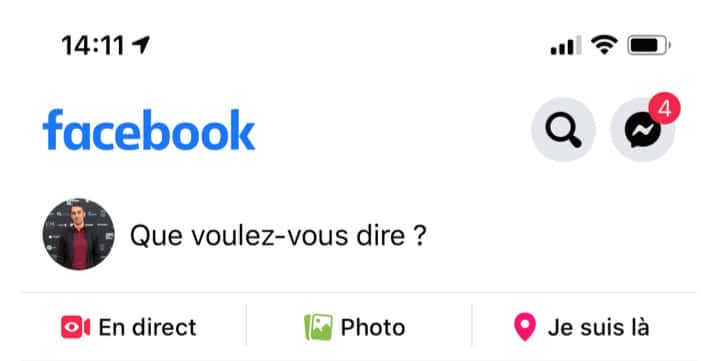
If you’re managing your Facebook Page from a profile, go to your Page from the Facebook app and do as you’re writing a regular post.
Except this time, you have to click on the “Live” button.
You can also tap the text “What do you mean?” and you should see these different options appear at the bottom. Just click on “Live Video”.
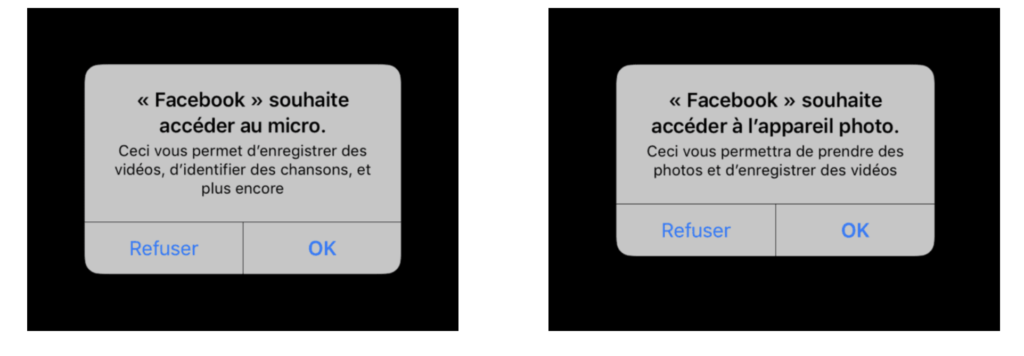
STEP 2: Allow access to your camera and microphone
Facebook will ask you for access to your microphone and camera the first time you use the live video feature and then won’t ask you again.
STEP 3: Write a description that can attract the attention of Internet users
After allowing Facebook access to the microphone and camera, you should see yourself on the screen and Facebook offers to write a description.
Ideally, your description should describe the event or the next episode of your show (if you choose to create a weekly live show).

Step 4: Adjust your camera and optionally add filters
At the bottom of your screen, you should see these different filters to add special effects to your Live.
For example, you can adjust the brightness (quite useful if it’s dark where you’re filming).

Step 5: Hit the “Live Stream” button and go!
Now all you have to do is press the big blue “Live Stream” button to start your Facebook Live
You will finally become a producer!
As you see, you can change filters again, select your phone’s rear camera, and moderate comments.
As soon as you have finished your Facebook Live, click on the “Finish” button.

Step 6: Publish your Facebook Live
After pressing the “Finish” button, Facebook asks you if you want to:
- Save video and keep it in your mobile memory
- Save your Live Facebook and publish it
- Delete video

How to make a live video on Facebook with your computer?
The second method to make a Live Facebook is to go through your desktop computer.
It is advisable to have few tabs open in your browser at the risk of hearing the computer heat up throughout the show if it is not sufficiently equipped with RAM.
Also, the webcams of laptops (MacBooks included) are now of lower quality than the cameras of our smartphones.
It is therefore advisable to buy an external HD quality webcam if you want to regularly do Facebook Lives on a computer.
Step 1: Go to your homepage
It’s the same principle as for a Facebook Live via mobile.
Click the “Live” button above the bar to write a classic post.

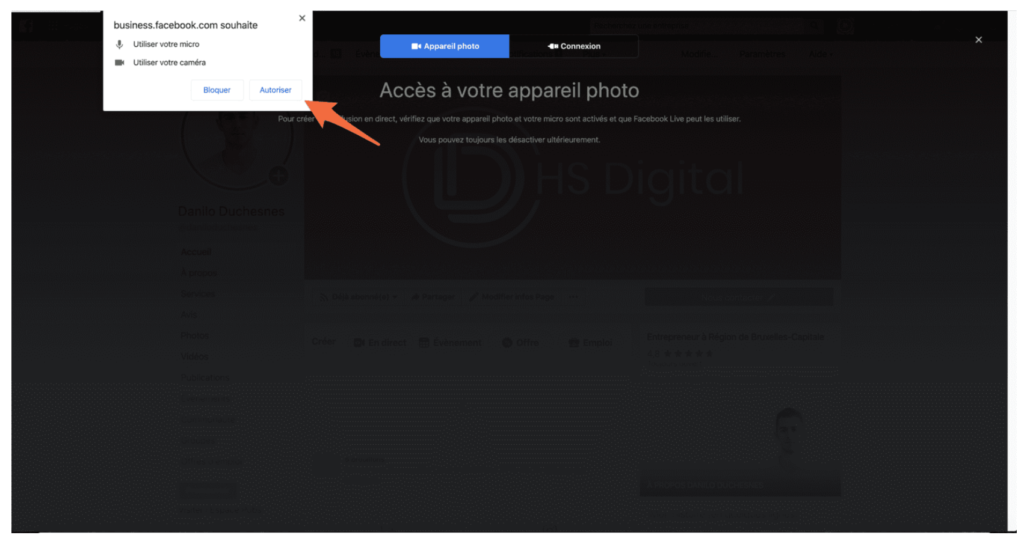
Step 2: Allow Facebook to use your microphone and camera
Again, Facebook will ask you for permission to use your computer’s camera and microphone and then won’t ask you again.
Step 3: Prepare your Live and tap “Live Broadcast” to start!
Then you can specify a description and a title for your Facebook Live.
You can also click on “Share screen” to share your screen, but if you do, you won’t be able to change the view during the live stream, which is a shame (no one will see you).

Step 4: Stop live streaming
Click the red “Stop Live Video” button at the bottom right of your screen.

Finally, you will have the choice between keeping the video and therefore publishing it on your profile or deleting it.
Now you know how to start a live on Facebook from a PC or a phone.

Our sample videos for our customers:

Article written by David Baudry
I founded Il Est Une Fois in 2002 and I am its artistic director, personally overseeing projects with high creative stakes. Trained in film and audiovisual production, I taught at the École Supérieure des Arts Visuels in Morocco, then worked in China and the United States. Since then, the agency has produced more than 3,500 films for the French Ministry of Justice, ARCEP, CNRS, the Sorbonne and UNESCO, as well as campaigns broadcast on TF1 and M6. In 2019, our work won the award for Best European Cinematography at the Grand European Off Film Awards in Warsaw.